

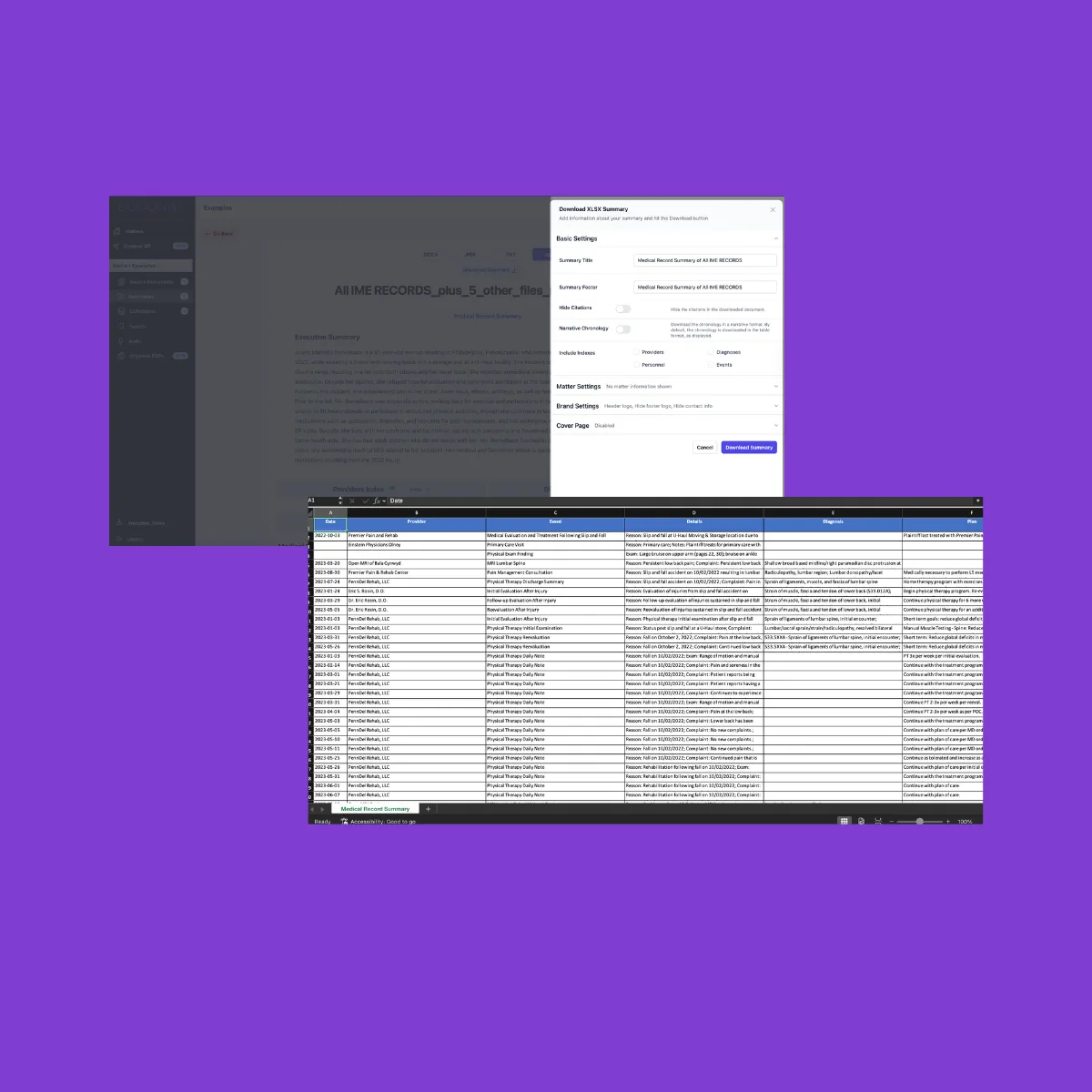
What is a “document summary table”?
A document summary table is a one-page grid that captures essential facts from records, depositions, or provider files - paired with direct citations so anyone on your team can verify quickly. It keeps review consistent, accelerates fact-pattern work, and prevents re-reading long PDFs.
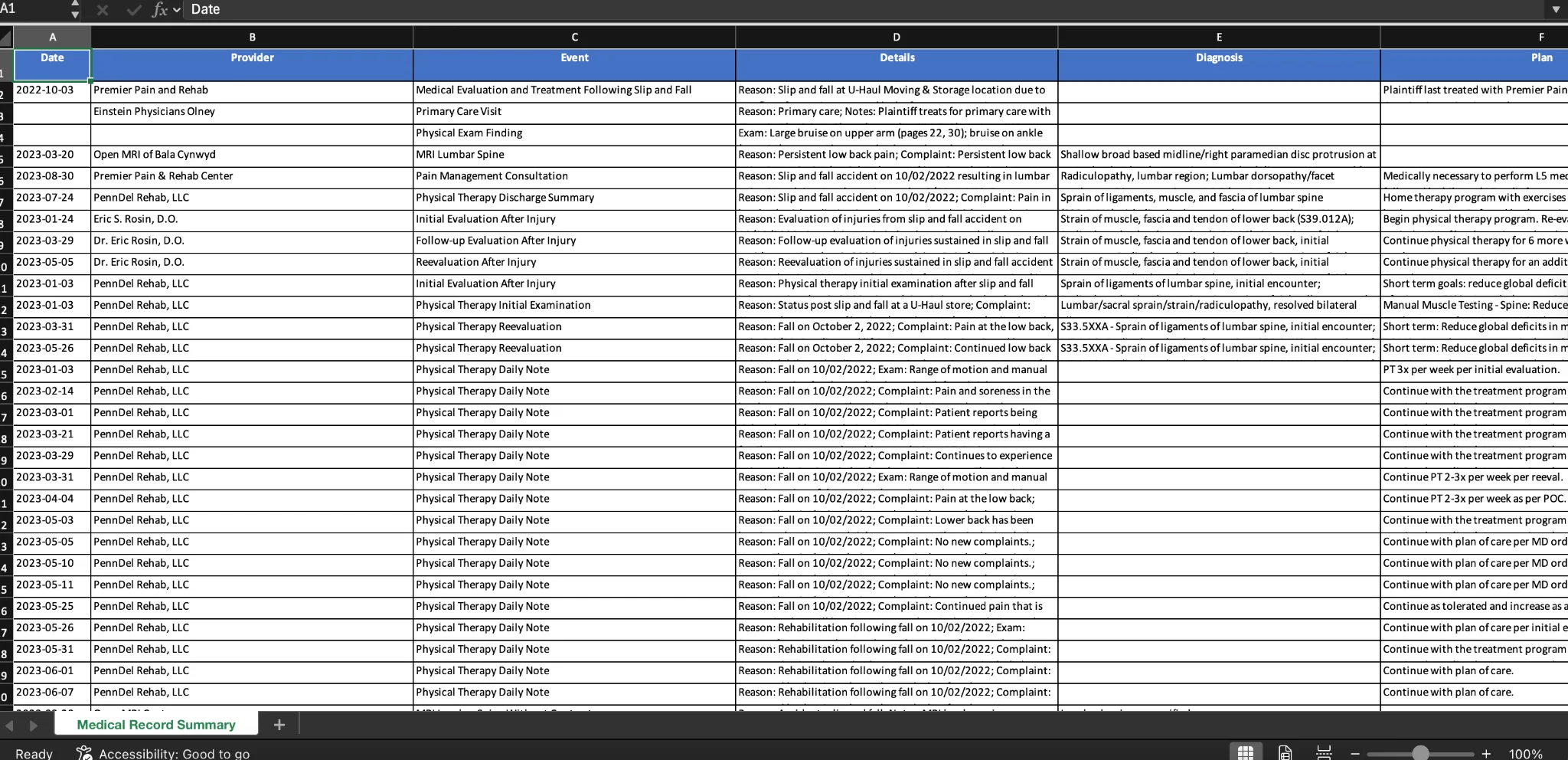
What a summary table does
A good summary table gives you:
- A consistent way to review high-volume documents
- A fast path to verification using source-based citations
- A scannable view of dates, events, providers, and issues
- A clean structure partners can trust during case prep
It’s built for litigation workflows, not court filings - so it focuses on clarity, citations, and efficient review. To see how this works in practice with medical records, check out how to build a provider timeline in 10 minutes.
The minimum fields you need
To keep adoption simple and the table usable across matters, include:
- Date - event or record date
- Source - document name + page or page:line reference
- Provider / Personnel
- Event / Fact - short, objective description
- Issue Tag - e.g., causation, treatment, damages, credibility
- Next Action - follow-up, confirmation, or request
These match the core elements used in Dodon.ai’s medical record chronology and deposition summary outputs.
If your workflow requires billing amounts, codes, or facility details, treat them as optional extensions—not core fields.
A simple one-page starter layout
Use this structure as your standard template:
Columns:
- Date
- Source (Doc + Page/Line)
- Provider / Personnel
- Event / Fact
- Issue Tag
- Next Action
Keep each entry short. Save longer explanations for narrative memos or partner notes.
How this aligns with Dodon.ai’s export options
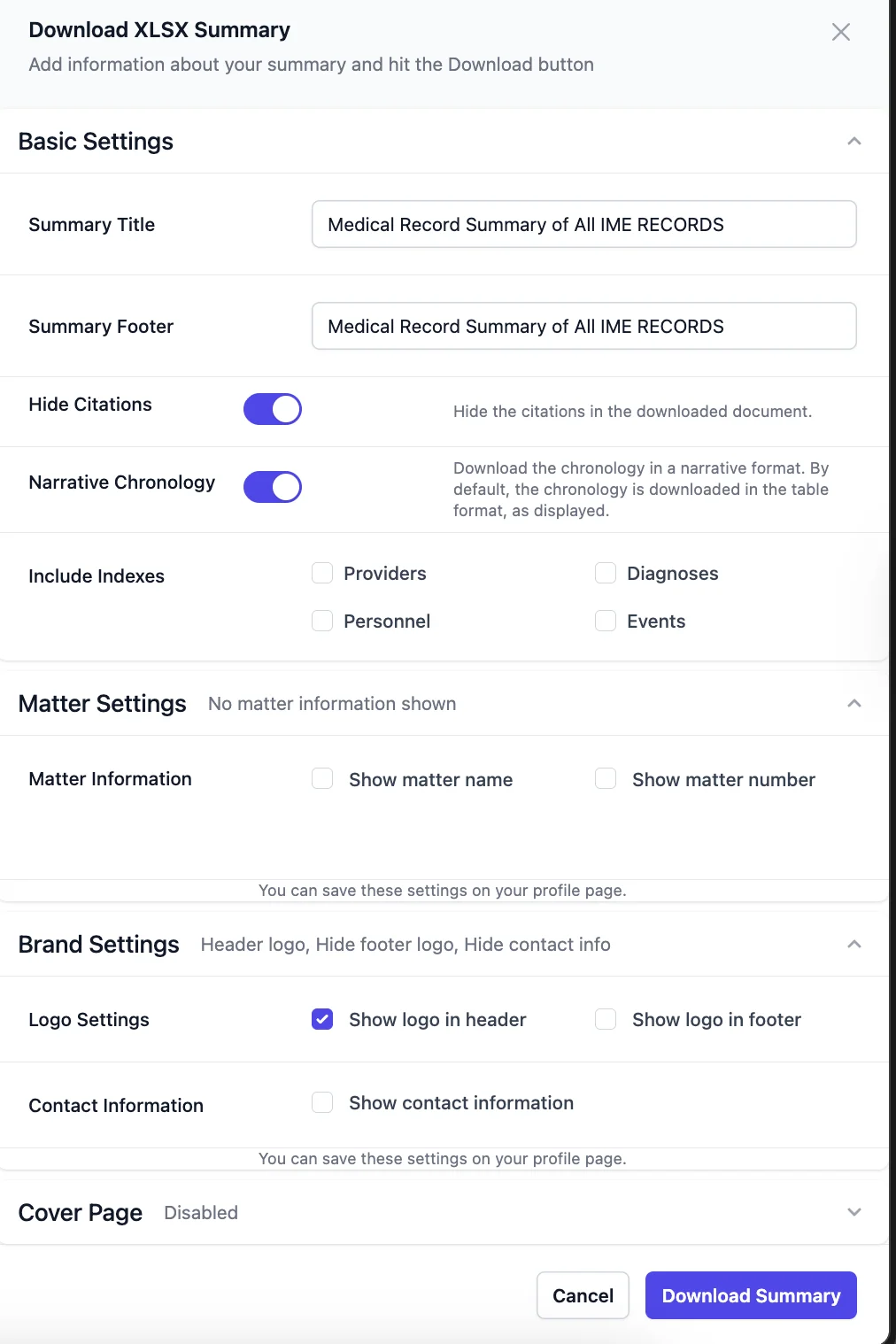
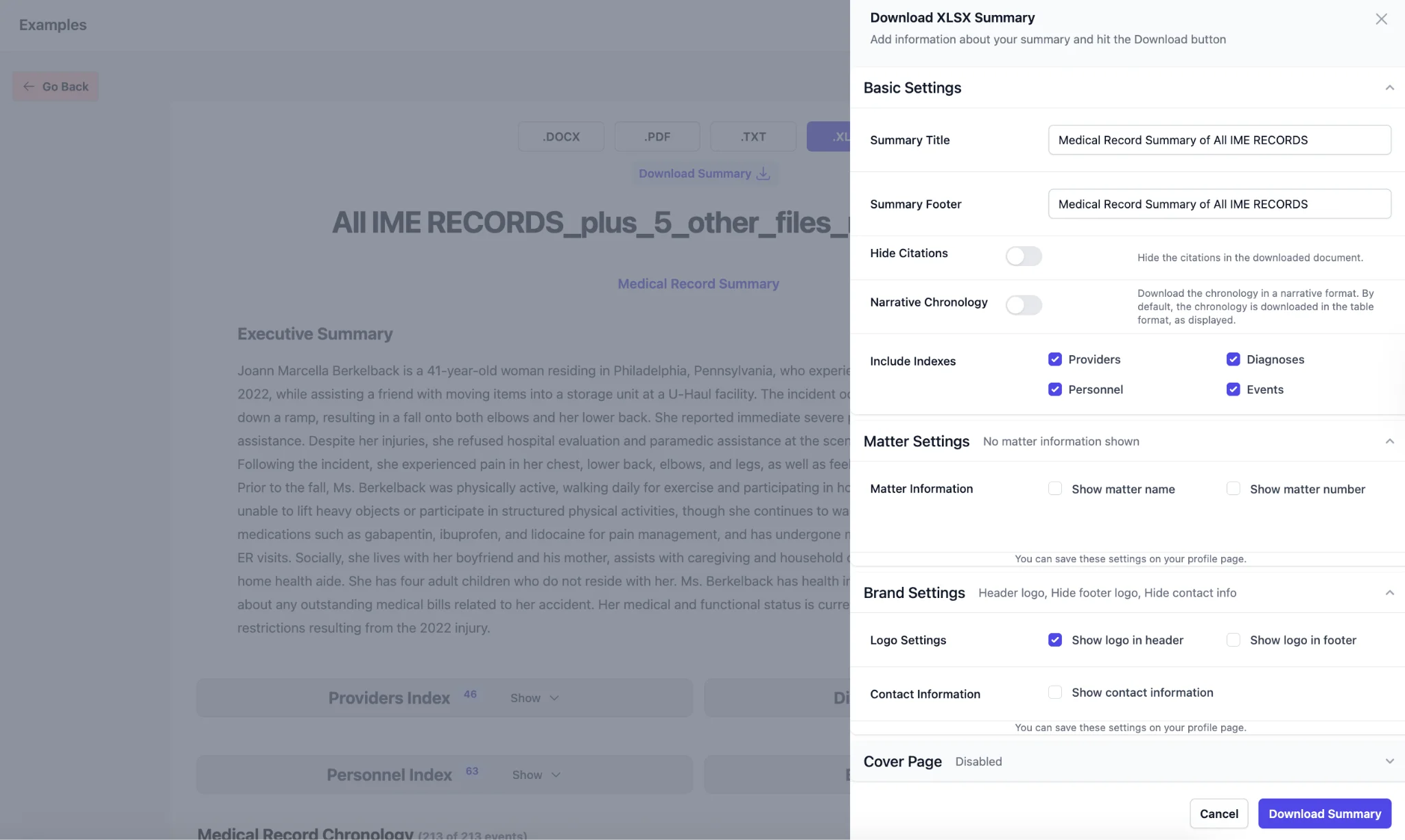
Your summary table matches Dodon.ai’s default chronology table format. Inside the export settings, you can:
Choose format
- Table
- Narrative Chronology (toggle)
Show or hide citations
Citations are on by default. You can turn them off if needed.
Include indexes
- Providers
- Personnel
- Diagnoses
- Events
Add matter information
- Matter name
- Matter number
Add branding
- Logo in header
- Logo in footer
- Contact information (optional)
Cover page (optional)
Add a branded cover page summarizing key matter details.
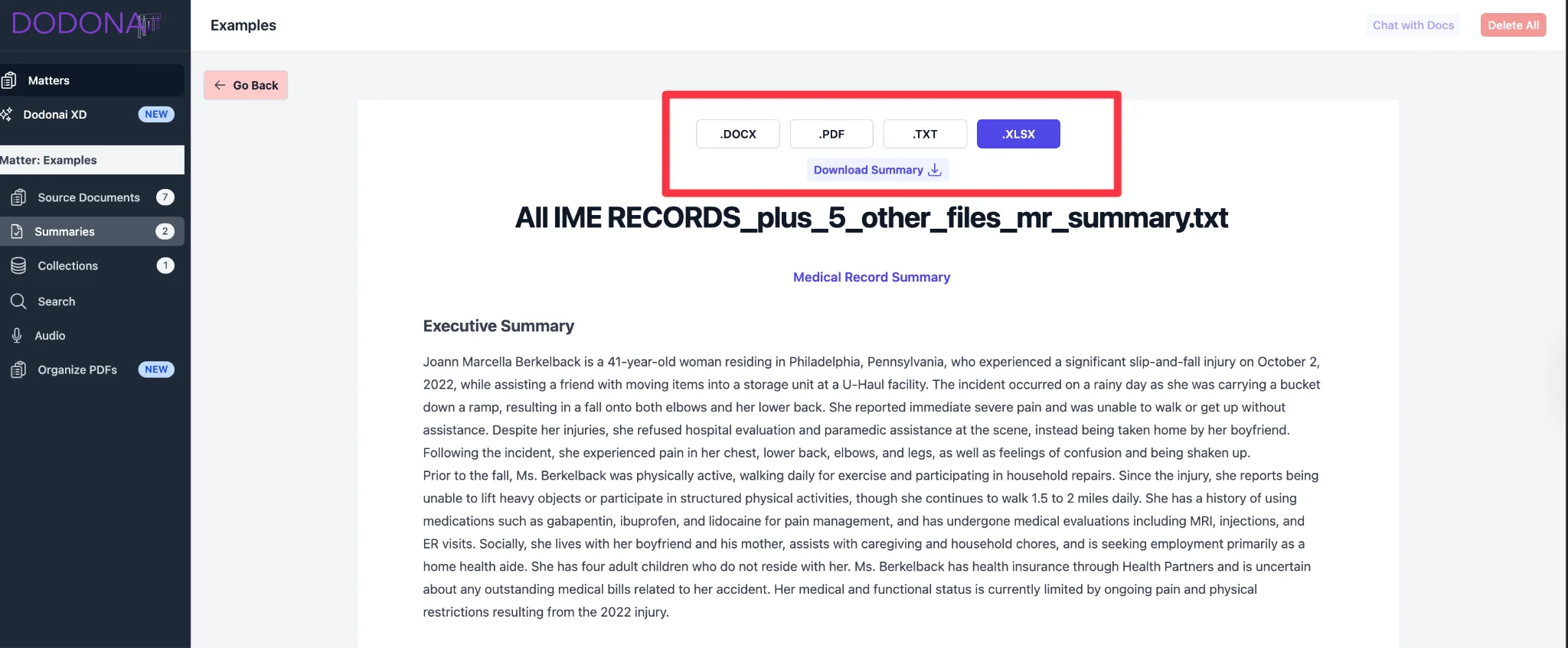
Exports
The interface supports PDF and DOCX.
(If your workspace has XLSX enabled, confirm internally.)
When to use a summary table
Use the table when you need to:
- Triage new documents
- Build a timeline
- Spot-check events and citations
- Review with partners
- Prep for depos, IMEs, or motions
Switch to narrative when preparing:
- Client updates
- Briefing outlines
- Medical case theory summaries
Dodon.ai lets you export either style from the same review set.
How to build yours inside Dodon.ai
- Upload your records or transcripts into a Matter
- Run Medical Record Summary or Deposition Summary
- Review and adjust entries directly in table view
- Open Export Settings:
- Keep citations on
- Select any indexes you want
- Add matter info or branding as needed
- Choose table or narrative format
- Click Download Summary
For more, visit:
Build your next summary table inside Dodon.ai -> try it now at [app.dodon.ai](https://app.dodon.ai/?utm_source=website&utm_medium=blog&utm_content=document summary)