
Messy provider PDFs slow everything down—searching, fact-checking, and especially citations to original records. The good news: a few minor fixes at the source make pages readable and searchable, so your team spends time on analysis instead of rescuing images.
Below is a practical, outcome-first guide for paralegals, case managers, and associates who live inside record packets.
Why scan quality matters in litigation prep
- Cleaner citations. Legible pages mean fewer retypes and fewer “guess-the-word” moments when you verify quotes against the original record.
- Faster timelines & chronologies. When text is precise and upright, dates, providers, and events are presented quickly and consistently.
- Less rework. Good inputs at intake prevent downstream cleanup during discovery and deposition prep.
Common scan problems you’ll actually see
- Low resolution or crushed contrast makes letters into blobs
- Skewed or rotated pages requiring manual rotation
- Clipped margins cutting off page headers, Bates numbers, or impressions
- Heavy stamps and stickers are obscuring diagnoses, signatures, or impressions
- Shadowed gutters or binder rings casting dark bars through key lines
- Mixed orientations (landscape pages inside portrait packets) disrupt reading
- Password-locked PDFs that block text selection or basic processing
Each of these breaks search and slows citation checks.
Simple fixes you can apply now
Prefer desk scanners to phone photos
Flatbed or ADF scanners de-skew and maintain consistent lighting. Camera glare and perspective distortions make text harder to read and verify.
Use practical scan settings (preset once, use for all)
- 300 DPI for text-heavy pages (go higher only for tiny text or images).
- Grayscale for text; color only for clinical images or colored annotations.
- PDF with selectable text, not just an image of a page.
- Enable auto de-skew, auto-rotate, and edge detection for straight, complete pages.
Fix orientation and skew in batches before sharing
Rotate sideways pages to an upright orientation and apply de-skew to keep the complete set consistent.
Keep packets logical and preserve page numbers
- Split/merge by provider or date so sections are predictable.
- Preserve original page numbers in filenames or an index for easy citations.
Flatten what obscures text
If stamps or stickies cover content, create a flattened copy that preserves visible text. Avoid security settings that block basic review tasks.
When (and how) to push back to the provider
A polite, specific medical records request can save hours later. For example:
Subject: Rescan Request – Patient [Name], MRN [#], DOS [range]
Hello [Records Dept], thank you for the records. Pages 14–31 are difficult to read due to skew and clipped margins, and the CT report impression appears cut off.
Could you please resend those pages as PDF at 300 DPI, with pages straightened and complete margins? If available, a text-selectable PDF is preferred.
We appreciate your help—this ensures accurate citations to the original records in our case file.
Best,
[Your Name], [Firm]
Insider tip: As you review, jot down any other providers referenced (e.g., imaging centers, PT clinics). Request those records while you’re in the flow.
How clean scans speed up chronologies & deposition prep
Clear pages let you present dates, providers, diagnoses, treatments, and events more quickly—so you can filter and verify without wrestling the file first. Upload clean packets, and you immediately reduce the risk of missed facts, misquoted passages, and wasted time re-requesting legible pages. For a walkthrough of turning clean scans into a usable timeline, see how to build a provider timeline in 10 minutes.
Where Dodon.ai helps
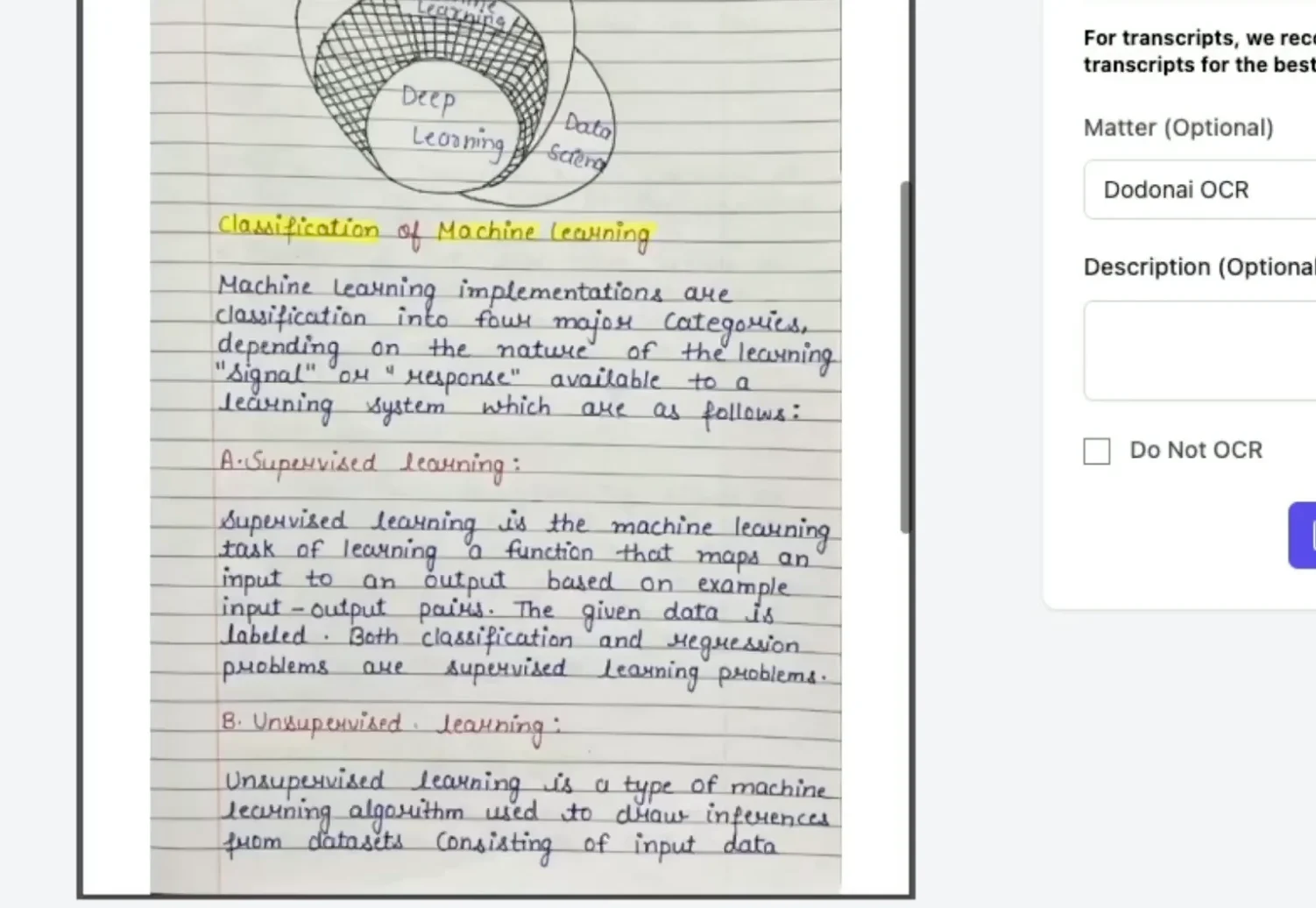
- AI PDF OCR — Reads scanned PDFs and (when legible) handwriting; recognizes tables and interprets images; can convert scans to editable Word. These capabilities improve downstream review, search, and extraction on messy PDFs.
- Medical record summaries & chronologies to speed litigation prep with organized, review-ready outputs.
- “Chat with your documents” so you can ask case questions against uploaded files when you need quick retrieval and follow-ups.
- Semantic search for e-discovery-style review across document sets.
Handwriting transcription works best when the writing is reasonably legible; as with any automation, verify important excerpts against the original page.
Quick reference checklist
- Ask providers for PDF at 300 DPI, straightened, complete margins
- Use grayscale for text; color only when needed
- Batch rotate/de-skew before distributing to counsel or experts
- Split/merge logically; preserve original page numbers
- Flatten stamps/stickies that obscure text
- Keep a running list of referenced providers
FAQ (Frequently Asked Questions)
What DPI is “good enough”?
Start at 300 DPI for text. Increase only for tiny type or image-heavy pages.
Is a phone photo okay in a pinch?
Use sparingly. Glare and perspective slow review and hurt readability. A quick scan usually beats a phone picture.
Can software read handwriting?
Often, when handwriting is reasonably legible, always verify outputs against the original record and keep citations in your work product. Dodon.ai supports handwriting recognition; quality depends on legibility and scan quality.
Bottom line
A few scan habits at intake save hours in discovery. Clean, upright, legible pages make citations to original records straightforward and speed up your chronologies and deposition prep. Once your records are clean and processed, make sure the handoff is secure too — see our guide on sending summaries safely with PHI-safe practices.
See how our software reads scanned documents & handwriting →
Ready to roll this out for your team? Check our pricing.